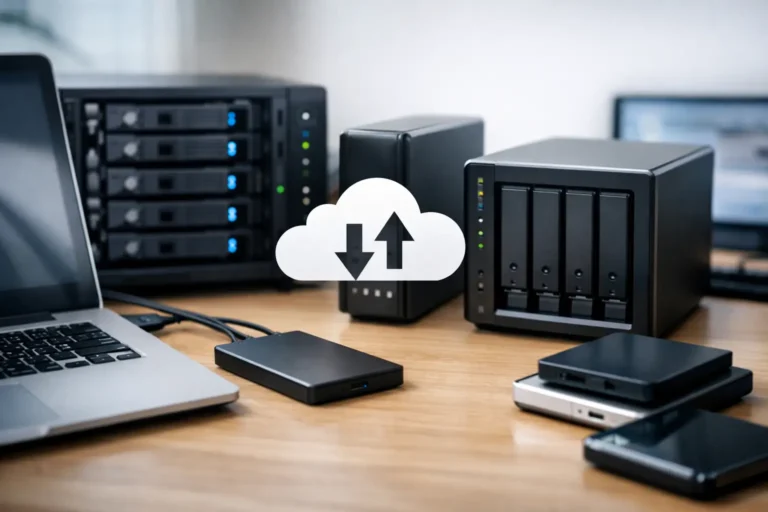
A backup usually matters right after something goes wrong – a failed hard drive, a ransomware hit, an accidental delete, or a laptop that simply refuses to turn on before a deadline. That is why choosing the best data backup solutions is less about buying storage and more about protecting time, money, and peace of mind.
For home users, the right setup can save family photos, tax records, school files, and years of personal documents. For small businesses, it can mean the difference between a minor interruption and a major operational problem. The best approach depends on how much data you have, how quickly you need it back, and how much risk you can afford.
What makes the best data backup solutions actually work
A backup is only useful if it is current, recoverable, and stored somewhere safe from the same event that caused the original loss. That sounds obvious, but many people still rely on a single external drive sitting next to the computer it backs up. If there is theft, fire, power damage, or malware, both copies can disappear together.
Strong backup planning usually follows the 3-2-1 idea: keep three copies of your data, on two different types of storage, with one copy offsite. You do not need an enterprise budget to do this well. You do need consistency. Automatic backups beat manual backups almost every time because people get busy, forget, or assume they will do it later.
Recovery speed matters too. Cloud backup is excellent for offsite protection, but restoring terabytes of data over the internet can take time. Local backup is fast, but it does not solve every disaster scenario. That is why the best fit for many households and businesses is not one tool, but a layered plan.
7 best data backup solutions for different needs
1. External hard drive backup
This is often the most affordable starting point. An external drive gives you a local copy of your files and, in many cases, a full system backup. For a home computer or a single office workstation, it is simple and practical.
The downside is that local drives fail, get misplaced, or stay unplugged. They also do not help much if the building has a major loss. External drives are best when paired with automatic backup software and used as one part of a larger plan, not the whole plan.
2. Cloud backup services
Cloud backup is one of the most popular options because it gives you offsite protection without requiring much hands-on work. Once configured, it can run in the background and continually protect documents, photos, and system data.
This is a strong choice for remote workers, households with multiple devices, and businesses that want protection from theft, fire, or local equipment failure. The trade-off is recovery speed. Small restores are easy. Large restores can take longer, especially with slow internet connections.
3. Network attached storage
A NAS is a shared storage device on your local network. It works well for families with several computers or small businesses with multiple users who need centralized backups. It can also support versioning, user permissions, and scheduled backups from several machines at once.
A NAS offers more flexibility than a single external drive, but it also needs proper setup and monitoring. It is not automatically an offsite backup. If you use a NAS, it is smart to pair it with cloud replication or another offsite copy.
4. Full image backup
A file backup saves selected data. An image backup captures the full system – operating system, applications, settings, and files. If a machine crashes, an image backup can get you back to where you were much faster than reinstalling everything from scratch.
This option is especially useful for business workstations, office servers, and home users who rely on one primary computer. It does use more storage, and it should still be tested occasionally. A backup image you have never restored is still an assumption.
5. Hybrid backup
Hybrid backup combines local and cloud protection. For many people, this is the sweet spot. You keep a fast local copy for quick restores and an offsite cloud copy for disaster recovery.
If a file is deleted by mistake, the local copy can get it back quickly. If hardware is destroyed or ransomware spreads through the office, the offsite copy gives you another path. Hybrid backup usually costs more than a single-method setup, but it covers more real-world problems.
6. Managed backup services
Some businesses do not want to manage backup software, storage health, failed jobs, retention policies, and recovery testing on their own. Managed backup services put that responsibility in the hands of IT professionals who can monitor backups, respond to issues, and help restore data when something goes wrong.
For small and mid-sized businesses, this can be more cost-effective than handling everything internally, especially if no one on staff is dedicated to IT. It also reduces one of the biggest backup risks: assuming everything is working when no one is checking.
7. Immutable or ransomware-resistant backups
Ransomware has changed the backup conversation. If attackers can encrypt or delete your backups, recovery becomes much harder. Immutable backups are designed so stored data cannot be altered for a set period, which adds a valuable layer of protection.
This option is becoming more relevant for businesses handling customer records, financial data, or shared office systems. It may be more than a typical home user needs, but for a company with even moderate downtime costs, it is worth serious attention.
Best data backup solutions for home users
If you are backing up one or two personal computers, the best setup is usually straightforward: automatic cloud backup plus a local external drive. That gives you day-to-day convenience and protection against bigger losses.
Home users often underestimate how much data matters until they lose it. Family photos, scanned records, passwords, creative projects, and saved email archives are not always replaceable. If your device is also your work machine, downtime has a cost too.
For seniors or less technical users, simplicity matters more than advanced features. The best system is one that runs quietly in the background and does not depend on memory or manual effort. A complicated backup plan that never gets used is not a good plan.
Best data backup solutions for small businesses
Small businesses need more than file copying. They need reliable recovery. That includes workstations, shared folders, accounting systems, line-of-business apps, and sometimes servers or virtual machines.
For most small businesses, a hybrid approach is the safest route. Local backup supports fast restores, while cloud or offsite backup protects against building-level events and cyberattacks. The right retention policy matters too. If a corrupted file sits unnoticed for weeks, yesterday’s backup may not be enough.
Business owners should also think about recovery time. Ask a simple question: if the server fails at 10 a.m. on Tuesday, how long can operations realistically be down? An hour, a day, three days? That answer should shape the backup strategy more than storage price alone.
Common backup mistakes that cause expensive problems
One of the biggest mistakes is assuming sync equals backup. It does not. If a file is deleted or encrypted on one device, a sync service may copy that change everywhere. Backup should preserve earlier versions and provide a separate recovery path.
Another issue is never testing restores. Backups can fail because of software errors, bad credentials, damaged media, or incomplete jobs. You do not want the first restore test to happen during an emergency.
There is also the problem of partial coverage. Many people back up documents but forget desktop folders, email archives, application data, or cloud app data they assume is protected forever. The right backup plan starts with identifying what actually needs to be recoverable.
How to choose the right fit
Start with three questions. What data can you not afford to lose? How quickly do you need it back? Who is responsible for checking that backups are working?
If you are a homeowner with one main computer, a simple automatic system is usually enough. If you run an office with multiple users, shared storage, or compliance concerns, your setup should be more structured and actively monitored. What works for a family laptop is not the same as what works for a business server.
This is where experienced local support can make a real difference. A company like Freelance Computers can help match backup tools to the way you actually use technology, rather than selling a one-size-fits-all answer. That matters because the best backup solution is the one that restores your data reliably when the pressure is on.
Good backups are not about fear. They are about removing uncertainty before it turns into downtime, lost memories, or a costly scramble to recover what should have been protected all along.
