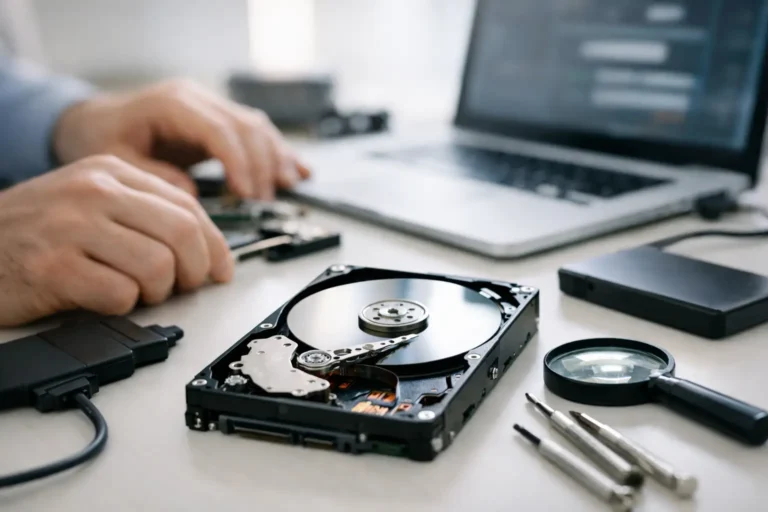
That moment usually starts the same way – your computer slows down, files refuse to open, or the drive suddenly disappears. If you are searching for how to recover failed hard drive data, the most important step is not what software to install. It is knowing when to stop, protect what is left, and avoid turning a recoverable problem into permanent data loss.
A failed hard drive can mean very different things. Sometimes the issue is logical, such as corrupted file tables, accidental formatting, or an operating system that no longer recognizes the drive correctly. Other times it is physical, which is where things get more serious. Clicking, grinding, repeated disconnects, or a drive that will not spin up often point to hardware failure. The right recovery approach depends entirely on which type of failure you are dealing with.
How to recover failed hard drive without making it worse
The first rule is simple: stop using the drive as soon as you notice a problem. Every reboot, scan, file copy, and repair attempt can place more stress on a failing disk. If the drive contains family photos, business records, QuickBooks data, legal files, or anything you cannot easily replace, caution matters more than speed.
If the drive is still recognized by the computer and there are no unusual sounds, you may have a narrow window to recover data yourself. In that case, connect the drive as a secondary device if possible rather than booting from it. Then copy the most important files first to a separate, healthy drive. Do not recover files back onto the same disk. That can overwrite damaged sectors and reduce your chances of getting anything else back.
If the drive is making clicking noises, disappears intermittently, feels excessively hot, or causes the system to freeze, stop there. Those symptoms usually suggest physical failure. DIY recovery software will not fix a bad read/write head, a seized spindle, or platter damage. In those cases, continued use can make professional recovery more difficult and more expensive.
Start by identifying the kind of drive failure
Not every failed drive is truly dead. Sometimes a drive is healthy enough internally, but the computer cannot communicate with it because of a bad cable, enclosure, USB adapter, or power issue. This is especially common with external hard drives. Before assuming the worst, test the basics carefully.
Try a different USB cable, a different port, or a known-good power supply if the drive uses one. If it is an external drive, remove it from the enclosure only if you know what you are doing and it will not void any recovery options you may need later. Sometimes the disk inside is fine and the enclosure board is the only failed part.
On a desktop or business workstation, check whether the drive appears in BIOS or Disk Management. If it shows up with the correct size but no drive letter, you may be dealing with partition damage or corruption. If it appears as unallocated space, the data may still be there even though the file system is not. If it does not appear at all, or shows the wrong size, hardware failure becomes more likely.
When software recovery can help
Software recovery makes sense in a limited set of situations. It is useful when files were deleted, a partition was damaged, the file system became corrupted, or the operating system cannot mount the drive even though the hardware is still responding normally.
The safest method is to create a full sector-by-sector image of the failing drive first, then run recovery tools against the image instead of the original disk. That protects the source media from repeated reads and gives you a better fallback if the drive worsens during the process. This step takes extra time, but it is the professional way to handle unstable media.
Recovery software can scan for lost file records and rebuild directory structures, but there are trade-offs. Deep scans may recover files with missing names or broken folder structures. Large video files, databases, and email archives are also more prone to partial corruption. A tool can find data, but it cannot always restore it in a usable form. That is why businesses with accounting files, client records, or line-of-business databases should be especially careful about relying on software alone.
Signs you need professional hard drive recovery
Some warning signs should move you straight past DIY attempts. Clicking or grinding sounds are high on that list. So is a burned smell, a drive that spins down immediately, or a system that hangs as soon as the drive is connected. If your laptop was dropped or your external drive took a hit, internal mechanical damage is possible even if the casing looks fine.
There is also a practical question: how valuable is the data, and how much risk can you tolerate? If the drive holds irreplaceable photos, business payroll data, years of emails, or active project files, guessing your way through recovery is rarely the cheapest option in the long run. A failed attempt can reduce what a lab is able to recover later.
Professional recovery is also the better choice when encryption is involved, when RAID arrays fail, or when a server volume goes offline. These cases often involve multiple layers of failure, and the recovery process has to preserve more than individual files. It has to rebuild the structure correctly.
What not to do with a failed hard drive
Bad advice travels fast when people panic. A few mistakes still show up often, and they can cost you the data completely.
Do not keep restarting the computer to see if the drive comes back. Do not run disk repair utilities on a mechanically failing drive. Do not open the hard drive casing in a home or office environment. Modern drives need cleanroom conditions for internal work, and a small amount of dust can damage the platters.
It is also best to avoid freezing the drive. That old trick has been repeated for years, but it is unreliable and can introduce moisture and condensation. In real-world recovery, it causes more problems than it solves.
Finally, do not install recovery software onto the same failed drive you are trying to save. That overwrites data and shrinks the pool of recoverable files immediately.
How businesses should respond to drive failure
For a home user, a failed drive is stressful. For a business, it can stop operations cold. Workstations with local-only files, aging servers, and external drives used as informal backup systems are common points of failure. When one goes down, downtime adds up fast.
The smart response is to isolate the affected device, verify whether backups exist, and avoid making the failed hardware the testing ground. If the machine is tied to billing, scheduling, inventory, or client communication, there is usually more at stake than the cost of the hardware itself. The drive can be replaced. Lost time and lost records are harder to recover.
This is where working with an experienced local IT team helps. A company like Freelance Computers can determine whether you are dealing with a recoverable file system issue, a failing physical disk, or a larger backup and infrastructure problem that needs to be fixed so it does not happen again.
After recovery, fix the real problem
Once your files are recovered, the job is only half done. A failed hard drive is not a one-time inconvenience unless you address the cause. Traditional hard drives wear out over time. Heat, power issues, vibration, and age all take a toll. External drives often fail because they are moved around constantly and used as primary storage when they should only be part of a backup plan.
For most users, the next step should be replacing the failed drive, checking the health of the system it came from, and setting up a proper backup routine. That might mean local backups plus cloud backup for a home office, or image-based backups and monitored systems for a business. The right answer depends on how much data you have, how quickly you need to recover from an outage, and whether multiple people depend on the same files.
There is no single answer to how to recover failed hard drive issues because every failure starts differently. Some cases are fixable with careful imaging and recovery software. Some need cleanroom work. And some become far worse because someone kept clicking, rebooting, and hoping. When the data matters, the best move is often the calmest one – stop using the drive, protect what remains, and get the right level of help before temporary failure becomes permanent loss.
