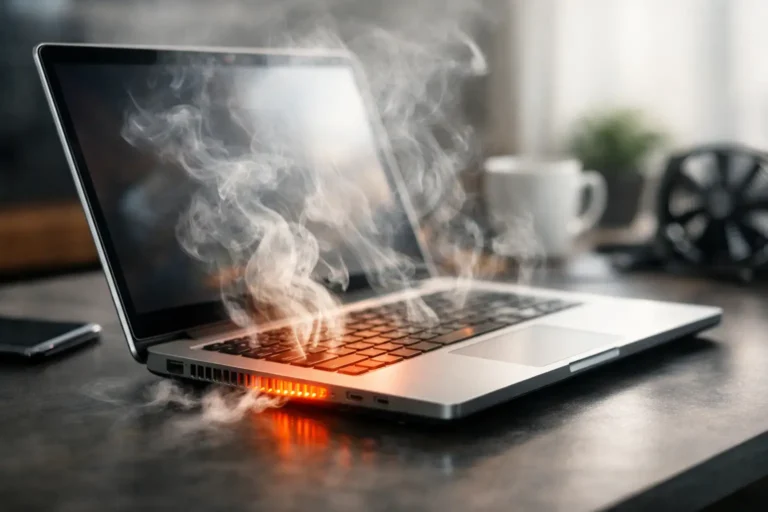
A laptop that feels hot to the touch, sounds like a small jet engine, and slows down right when you need it most is more than an annoyance. If you’re asking, “why is my laptop overheating,” the short answer is that heat is building up faster than your system can remove it. The real question is why that balance changed.
Sometimes the cause is simple, like a blocked air vent or a blanket cutting off airflow. Other times, the problem points to worn thermal paste, dust packed inside the fan assembly, a failing battery, or software that is pushing the processor harder than it should. The good news is that overheating usually leaves clues before it turns into a major repair.
Why is my laptop overheating in the first place?
Every laptop creates heat. The processor, graphics chip, storage, battery, and charging system all generate it during normal use. A healthy cooling system moves that heat out through fans, vents, and internal heat sinks.
When a laptop overheats, one of two things is usually happening. Either the machine is producing too much heat for the task at hand, or it cannot get rid of heat efficiently. In real-world service calls, we often see both at the same time. A laptop may be running heavy software while also dealing with clogged vents and aging internal components.
That is why overheating should be treated as a system issue, not just a fan issue. You want to look at airflow, workload, environment, and hardware condition together.
The most common causes of laptop overheating
Dust is one of the biggest culprits. Over time, fine debris collects inside the cooling fan and heat sink. Instead of moving hot air out, the fan starts fighting through a layer of buildup. In Arizona, where dry air and dust are a constant factor, this tends to happen faster than many people expect.
Blocked ventilation is another common reason. Laptops are designed to pull in and push out air through specific openings. If you use the computer on a bed, couch, lap, or soft cushion, those vents may be partially covered. Even a perfectly working fan cannot cool a system if airflow is cut off.
High CPU or GPU usage can also be the answer to “why is my laptop overheating.” Video editing, gaming, large spreadsheet work, multiple browser tabs, background syncing, and software updates can all push temperatures up. That is normal to a point. What is not normal is constant overheating during light tasks like email or web browsing.
Old or failing thermal paste is another issue people do not see from the outside. Thermal paste helps transfer heat from the processor to the cooling assembly. As it dries out over the years, heat transfer becomes less effective. The fan may run harder, but the heat still lingers.
Battery trouble can raise temperatures too. A battery that is swelling, aging badly, or charging improperly may create excess heat. If the bottom of the laptop gets unusually hot near the battery area, or the case starts to bulge, stop using it and have it checked right away.
Malware and runaway processes are less obvious but very real causes. A laptop infected with malicious software may be working constantly in the background. The same can happen with legitimate programs that freeze, loop, or consume resources after a bad update.
Signs your laptop is overheating
Heat alone is not always the problem. Many laptops run warm during demanding work. The issue is when heat starts affecting performance, stability, or safety.
One of the clearest warning signs is thermal throttling. That means the laptop slows itself down to avoid damage. If your system suddenly becomes sluggish during normal tasks, overheating may be the reason. Random shutdowns are another red flag. That is often the machine protecting itself from excessive internal temperatures.
You may also notice loud, nonstop fan noise, a keyboard that becomes uncomfortable to touch, or hot air blowing constantly from the exhaust vent. In some cases, the laptop may display temperature warnings or fail to charge properly because heat is interfering with normal power management.
If your laptop only runs hot during gaming or design work, the solution may be improving cooling and managing load. If it overheats while checking email, something is off and deserves attention.
What you can do right now
Start with the basics. Move the laptop to a hard, flat surface like a desk or table. That single change improves airflow more than many people realize. If you have been using it on fabric or cushions, test it for a day on a solid surface and see whether temperatures improve.
Next, shut down unnecessary programs. Open Task Manager on Windows or Activity Monitor on a Mac and look for apps using an unusual amount of CPU, memory, or energy. If one browser tab or background app is consuming resources nonstop, closing it may reduce heat quickly.
Check for pending updates as well. Operating system bugs, bad drivers, and outdated BIOS or firmware can all contribute to fan control and thermal issues. Updates do not solve every overheating problem, but they can fix software behavior that is making the issue worse.
You can also inspect the vents visually. If they are packed with dust, airflow is already compromised. Light external cleaning can help, but be careful. Blasting compressed air the wrong way can push debris deeper inside or stress the fan. If the buildup is heavy, internal cleaning is the better route.
A cooling pad may help in some situations, especially for users who spend long hours on video calls, remote work, or moderate creative tasks. Still, a cooling pad is support, not a cure. If the internal fan is failing or the heat sink is clogged, the root problem remains.
When overheating points to a hardware problem
There is a line between simple maintenance and repair territory. If the fan is grinding, rattling, or not spinning consistently, that is not a cleaning issue alone. It may be wearing out. If the laptop is several years old and runs hot even after airflow improves, the internal thermal compound may need replacement.
Another concern is battery health. Heat and battery wear often feed into each other. A failing battery can increase heat, and excessive heat can shorten battery life even further. If you notice swelling, a lifting trackpad, or separation in the chassis, stop charging the device and get professional help immediately.
Business users should also think about the bigger cost of waiting. An overheating workstation may not just shut down once. It can reduce productivity, interrupt meetings, corrupt active files, and shorten the life of the storage drive or motherboard. For a home user, that is frustrating. For an office, it becomes downtime.
Why is my laptop overheating even after I cleaned it?
If you already wiped the vents and the problem is still there, the issue may be inside the system or in the software layer. Surface cleaning only goes so far. Internal dust mats, dried thermal paste, hidden malware, damaged fans, and power-related issues will not be fixed from the outside.
It also depends on the age and design of the laptop. Thin, high-performance laptops often run hotter than larger models because they have less room for airflow. That does not automatically mean something is broken. But if temperatures are rising compared to how the machine behaved six months or a year ago, that change matters.
Charging habits can also play a role. Using a laptop heavily while charging, especially with the wrong charger or a worn battery, can raise temperatures significantly. Heat during charging is not unusual, but excessive heat is worth checking.
When to get professional help
If your laptop keeps shutting down, overheats during basic tasks, smells hot, shows battery swelling, or has fan noise that has changed dramatically, it is time for a closer look. The same goes for systems used for work, where one failure can interrupt your day or put important data at risk.
A proper diagnostic can tell you whether the problem is dust buildup, a failing cooling fan, degraded thermal paste, malware, power issues, or a combination of several things. That matters because guessing can get expensive. Replacing the wrong part does not solve the heat problem.
For local users in Phoenix and the East Valley, this is the kind of issue that benefits from experienced hands. Freelance Computers sees overheating problems across consumer laptops and business workstations, and the right fix is often faster and more affordable when the cause is identified early.
Heat is your laptop’s way of asking for attention. If you respond early, you usually have more options, lower repair costs, and a better chance of keeping the machine reliable for the work you depend on every day.
