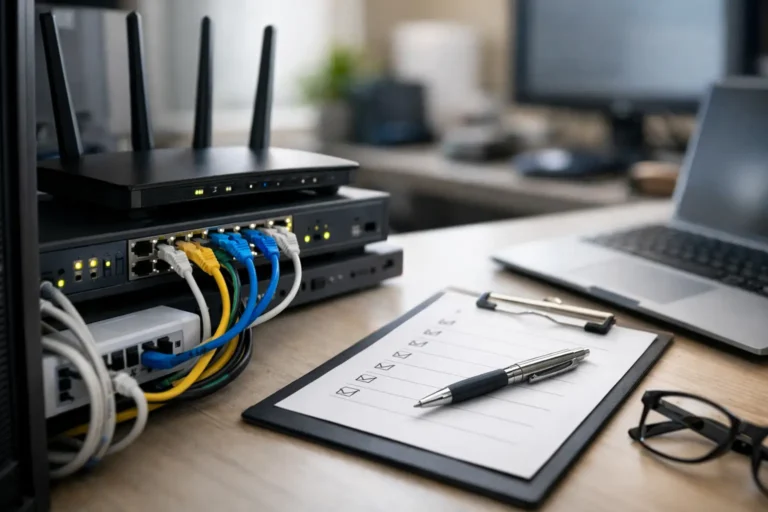
A slow connection, an unknown Wi-Fi password, or a failed backup can bring an office to a standstill faster than most business owners expect. This office network configuration checklist helps small businesses build a network that supports daily work, protects company information, and gives employees a clear path when something goes wrong.
A good setup is not about buying the most expensive hardware. It is about making thoughtful choices for your office size, the applications you use, how employees work, and how much downtime your business can tolerate. A five-person office with cloud-based software has different needs than a growing company with on-site servers, security cameras, phone systems, and remote staff.
Start With a Clear Network Plan
Before connecting equipment, take inventory of what the network must support. Count workstations, laptops, printers, mobile devices, VoIP phones, cameras, smart TVs, access control systems, and guest devices. Include growth plans, not just what is in the office this week. If you expect to add ten employees this year, plan for that capacity now.
Document the internet service plan, expected upload and download speeds, modem details, public IP requirements, and the name of the provider. Download speed gets the attention, but upload speed matters just as much for cloud backups, video calls, large file transfers, and off-site access. A busy office can outgrow a basic internet plan even when casual speed tests appear acceptable.
Also decide which systems need priority. Voice calls, video meetings, payment processing, and line-of-business applications should not compete equally with music streaming or guest browsing. This is where traffic management settings, often called quality of service, can make a noticeable difference.
Build the Physical Network Correctly
Reliable networks start with the physical layer. Use business-grade routers, managed switches, firewalls, and wireless access points that can be monitored and updated. Consumer equipment may work in a small office, but it often lacks the security controls, capacity, warranty support, and visibility needed as the business grows.
Place networking equipment in a clean, ventilated location that is protected from accidental unplugging, heat, and water. A locked rack or cabinet is preferable for many offices. Connect critical equipment to an uninterruptible power supply so a brief outage does not immediately shut down the firewall, switch, internet connection, or server.
Use properly labeled Ethernet cables and avoid running loose cables where they can be damaged. Wireless is convenient, but wired connections are still the better choice for desktops, servers, printers, phones, and stationary equipment that needs consistent performance. Wi-Fi should extend your network, not carry every critical workload by default.
Access point placement matters. One router placed in a back office rarely provides dependable coverage across a suite, warehouse, or multi-room workspace. Walls, metal shelving, concrete, and neighboring wireless networks all affect signal quality. A site review can determine whether your office needs multiple access points, wired backhaul connections, or a different layout.
Office Network Configuration Checklist: Security and Access
The most useful security measures are often the basics completed consistently. Every business should confirm the following during setup:
- Change all default administrator usernames and passwords, then store credentials in a secure password manager.
- Update firmware on the firewall, router, switches, wireless access points, and connected devices before putting them into regular use.
- Create separate networks for employees, guests, and devices such as cameras, printers, or smart equipment.
- Use strong Wi-Fi encryption, unique passwords, and a separate guest password that can be changed without disrupting employee access.
- Configure a business-grade firewall with unnecessary inbound traffic blocked by default.
- Give each employee an individual account where possible, rather than sharing a single login or administrative password.
Network separation is especially valuable. A guest who connects to the office Wi-Fi should be able to access the internet, but not employee computers, shared files, printers, cameras, or accounting systems. Likewise, internet-connected devices such as cameras and smart displays should not have open access to sensitive business data.
Administrative access deserves extra attention. Limit who can make changes to network equipment, and require multi-factor authentication wherever the platform supports it. A former employee should never retain access to the network, cloud dashboard, VPN, or shared business passwords after departure.
Remote access is another area where convenience can create risk. If employees need to work away from the office, use a properly configured VPN or secure remote access solution. Do not expose remote desktop services directly to the internet without strong protections. The right approach depends on your software, workforce, and security requirements, but informal workarounds are rarely the answer.
Configure Backups Before You Need Them
A network alone does not protect business data. Your configuration plan should identify where important information lives: local server folders, employee laptops, cloud applications, accounting platforms, email, and line-of-business software. Each location may require a different backup method.
Follow the practical principle of keeping multiple copies of important data, with at least one copy protected away from the office. A local backup can restore files quickly after accidental deletion or hardware trouble. An encrypted off-site or cloud backup provides protection if the office experiences theft, fire, flood, ransomware, or major equipment failure.
Backups must be tested. A backup report that says “successful” is encouraging, but it does not guarantee that files can be restored quickly or that the backup includes the systems your business relies on. Schedule periodic restore tests for a folder, a workstation, or a critical application. Record how long recovery takes and where gaps exist.
Test Performance, Failures, and Everyday Use
Once configured, test the network from the employee perspective. Connect from wired and wireless devices, print documents, place calls, join video meetings, access shared files, and verify that guest Wi-Fi cannot reach internal resources. Walk through the office to check wireless coverage in conference rooms, reception areas, storage spaces, and places where staff actually work.
Then test the less convenient scenarios. What happens when the internet connection drops? Does the phone system continue working? Is there a backup connection available for a business that depends on online transactions or dispatch services? What happens after a power interruption? These answers determine whether a short outage becomes an operational crisis.
It is also wise to monitor bandwidth use over time. A network that performs well on opening day may struggle after new employees, cloud applications, cameras, and software updates are added. Monitoring helps identify whether the problem is internet capacity, a failing access point, an overloaded switch, or one device consuming unusual bandwidth.
Keep Documentation Where the Right People Can Find It
A network should not depend on one person remembering how it was assembled. Maintain secure, current documentation that includes the network diagram, equipment model numbers, warranty information, internet provider details, IP address ranges, Wi-Fi names, device locations, administrator access procedures, and backup contacts.
Use a sensible naming convention for devices. Names such as “FrontDesk-PC,” “ConferenceRoom-AP,” or “Warehouse-Printer” are far more useful than a list of serial numbers. Clear labels reduce troubleshooting time and help a technician respond faster when an issue occurs.
Review this documentation after major changes, including employee turnover, new software, office moves, equipment replacements, and internet provider changes. An accurate diagram can save hours during an outage.
Know When to Bring in Network Support
Small businesses can handle simple setup tasks internally, but a growing network introduces trade-offs around security, uptime, compliance, and support. If your office has servers, remote workers, multiple locations, payment systems, regulated data, or recurring performance problems, professional configuration can prevent expensive mistakes.
For businesses in Phoenix and the East Valley, Freelance Computers can help assess the current environment, configure secure network equipment, document the setup, and provide ongoing support when technology needs attention. The goal is not to make your office more complicated. It is to give your team dependable tools and a real person to call when they need help.
A well-configured office network quietly supports the work that matters most. Review it regularly, test what you depend on, and treat documentation and security as ongoing responsibilities rather than one-time setup tasks.
