A slow printer is annoying. A dropped call during a client meeting, a payment system that goes offline, or shared files that suddenly become unavailable can stop a small office in its tracks. That is why a solid small office network setup guide matters – not as a technical exercise, but as the foundation for how your team works every day.
For most small businesses, the goal is not building an enterprise-grade environment with features nobody uses. The goal is dependable internet, secure access to files and apps, stable Wi-Fi, and a setup that can grow without becoming expensive or difficult to manage. If you are opening a new office, moving locations, or cleaning up years of patchwork fixes, getting the basics right will save time, frustration, and money.
What a small office network setup guide should actually help you decide
A good network plan starts with the way your office operates. A five-person accounting office has very different needs than a retail storefront, a medical practice, or a hybrid team with staff coming and going all day. Before buying equipment, think about how many users you have, how many devices each person uses, whether you rely on cloud platforms, and whether your phones, cameras, printers, or point-of-sale systems all share the same network.
This is also where trade-offs start to appear. A lower-cost setup may work fine for a very small office with light internet use. But if your staff is on video calls all day, shares large files, or depends on uninterrupted access to cloud software, bargain hardware often becomes expensive later through downtime and support calls.
Start with internet service and bandwidth
The internet connection is the part everyone notices first, but speed alone is not the whole story. Reliability matters just as much. A business that processes transactions or depends on VoIP phones may be better served by a slightly more expensive plan with better uptime and faster response from the provider.
Upload speed is often overlooked. Many offices focus on download numbers because that is what providers advertise, but video meetings, cloud backups, remote desktop sessions, and large file transfers all depend on upload capacity too. If your team works heavily in Microsoft 365, Google Workspace, hosted apps, or offsite backups, weak upload performance will show up fast.
If downtime is costly, consider a backup internet option. That could be a secondary connection or a managed failover setup. Not every office needs it, but for some businesses, even one lost afternoon can cost more than months of backup service.
Choose business-grade network hardware
Consumer gear is tempting because it is cheap and easy to find. In a home, that may be enough. In a business, it usually creates limits. A small office network setup guide should steer you toward equipment that is designed for multiple users, better security controls, and easier troubleshooting.
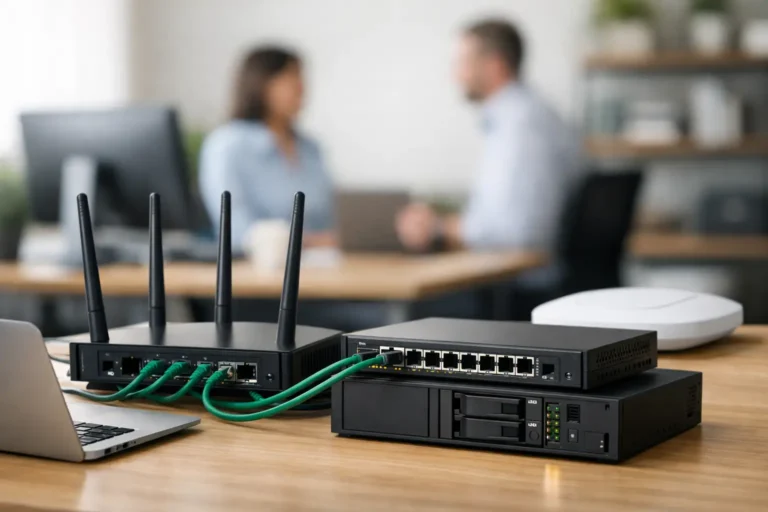
Your core hardware usually includes a modem or fiber handoff, a firewall or router, one or more switches, and one or more wireless access points. In a very small office, some functions may be combined into one device, but all-in-one simplicity has a downside. If that one device fails, everything fails with it.
A dedicated firewall is worth serious consideration. It gives you more control over traffic, remote access, content filtering, and security policies. It also makes it easier to separate business devices from guest Wi-Fi or smart office equipment. For a growing office, that flexibility matters.
Wireless access points deserve special attention. Many Wi-Fi complaints are really coverage problems, interference problems, or poor placement. One router in a back office rarely provides even coverage across a larger suite. Access points placed where people actually work will almost always outperform a single device trying to cover the whole space.
Plan your network layout before you plug things in
Even a simple office benefits from a basic layout plan. Think in terms of who and what should connect, where those connections happen, and what needs to stay separate. Employee computers, servers or network storage, VoIP phones, printers, guest devices, security cameras, and point-of-sale equipment do not all belong in the same lane.
Network segmentation can sound advanced, but the idea is straightforward. You reduce risk and improve performance by separating different types of traffic. Guest Wi-Fi should not have access to internal files. Security cameras do not need to sit on the same segment as accounting systems. If one device is compromised, separation can limit the damage.
This is also the stage to decide whether your office needs shared storage, a server, or a fully cloud-based approach. There is no single right answer. Some businesses are better off with cloud tools and minimal onsite equipment. Others need local file access, application hosting, or line-of-business systems that still work best in-house.
Wi-Fi setup for real office use
Strong Wi-Fi is not just about signal bars. It is about capacity, consistency, and coverage in the areas where your staff and customers actually use devices. Building materials, neighboring businesses, and office layout all affect wireless performance.
Place access points centrally when possible, away from heavy obstructions and not hidden inside a metal cabinet or server closet. If your office has conference rooms, front desk areas, and back offices with different usage patterns, placement should reflect that. Staff who rely on wireless laptops and phones will notice weak roaming or dead zones long before anyone checks a dashboard.
Guest Wi-Fi should be separate from the business network. This protects internal systems and keeps guest traffic from competing with business-critical devices. It also gives you more control over passwords, bandwidth limits, and acceptable use.
Security should be built in from day one
Security is often treated like something to add later. That is a mistake. Small businesses are frequent targets because they often have valuable data but fewer protections in place.
Start with the basics: a properly configured firewall, strong admin credentials, multifactor authentication where available, encrypted Wi-Fi, current firmware, and restricted user permissions. Staff should not have administrative access unless there is a real reason. The fewer open doors, the better.
Remote access needs special care. If employees work from home or travel, they may need access to office resources, but that access should be controlled and monitored. Convenience matters, but open remote access tools can create serious risk if they are not configured correctly.
Email security, endpoint protection, and employee awareness also matter. Many network problems start with phishing, weak passwords, or infected devices rather than a failure of the network hardware itself.
Backup, recovery, and monitoring
A stable office network is not only about preventing problems. It is also about recovering quickly when something goes wrong. Internet outages, hardware failure, accidental deletion, ransomware, and power issues all happen in real businesses.
Your setup should include backup planning for both data and network configuration. File backups are obvious, but documenting device settings, passwords, IP schemes, and equipment models matters too. When an emergency happens, having that information available can cut hours off recovery time.
Battery backup units for key equipment are often worth the investment. A brief power issue can corrupt devices, interrupt phones, or knock out internet access. Giving the firewall, switch, and internet equipment short-term power can prevent bigger disruptions.
Ongoing monitoring is another difference between a network that works and one that keeps surprising you. Slow degradation, failing hardware, storage issues, and unusual traffic patterns are much easier to address early than during a full outage.
When a DIY setup makes sense and when it does not
Some very small offices can handle a basic setup internally, especially if they use mostly cloud services and have simple needs. If the environment is small, the equipment is well chosen, and someone on the team understands the fundamentals, a DIY approach may be fine.
But there is a point where DIY becomes expensive. If your office has multiple access points, VoIP phones, shared storage, security requirements, remote workers, compliance concerns, or a history of recurring issues, professional setup usually pays for itself. The value is not just installation. It is planning, documentation, security hardening, testing, and having real people to call when something breaks.
For businesses in Phoenix and the East Valley, that local support can make a big difference. Freelance Computers works with small businesses that need practical network design, dependable support, and clear answers without the runaround. That matters when your network is tied directly to your day-to-day operations.
A better small office network setup guide starts with your workflow
The best network is not the one with the most features. It is the one that fits your office, supports your team, and keeps problems from interrupting your work. That might mean a lean cloud-first setup for one business and a more structured network with segmented Wi-Fi, managed security, and backup internet for another.
If you are planning a new office or dealing with a network that has been patched together over time, take a step back and look at how your business actually runs. The right setup should feel dependable in the background, so your staff can focus on customers, deadlines, and the work that keeps your business moving.
