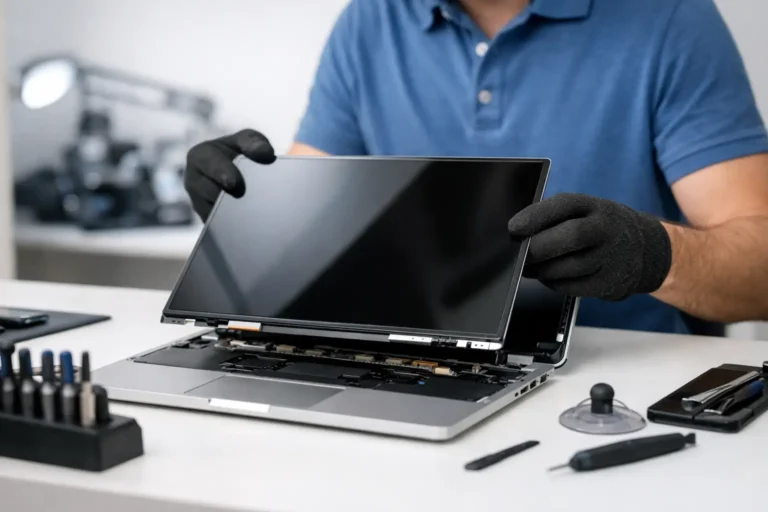
A computer screen can fail in ways that look similar but require very different repairs. One laptop may have a visible crack after a drop; another may power on with a black display, flickering image, colored lines, or a dim backlight. This computer screen replacement guide helps you identify what may be wrong, understand your repair options, and avoid spending money on the wrong fix.
For remote workers, students, families, and business owners, a damaged screen is more than an inconvenience. It can stop work, interrupt communication, and leave important files difficult to access. The good news is that many screen problems are repairable – and a proper diagnosis can often determine whether replacement is worthwhile before parts are ordered.
Start by Identifying the Type of Screen Problem
A cracked LCD panel is usually straightforward to identify. You may see spiderweb cracks, black ink-like blotches, rainbow discoloration, or sections of the display that no longer show an image. Even when the glass looks intact, pressure damage inside the panel can create dark areas or vertical lines. In these cases, the display assembly or LCD panel typically needs replacement.
A black screen is less certain. The computer may still be running, with indicator lights, fan noise, or startup sounds, while the display remains dark. That can point to a failed screen, but it may also be caused by a loose display cable, failed backlight, graphics problem, battery issue, or motherboard fault. Replacing the panel without testing these possibilities can waste time and money.
Flickering, intermittent lines, and an image that changes when the lid moves often suggest a cable or hinge-area problem. A technician can inspect the cable connection and panel before recommending a complete screen replacement. This matters especially on laptops, where a worn cable can mimic a much more expensive failure.
Computer Screen Replacement Guide: Test Before You Replace
Before deciding that a laptop screen is bad, connect the computer to an external monitor or television if one is available. If the external display works normally, the operating system and graphics hardware may be functioning correctly, narrowing the issue to the laptop display, cable, or display connection.
This test is useful, but it is not a final diagnosis. Some graphics failures affect one display output but not another, and some laptops need a keyboard shortcut or settings adjustment to send video to an external screen. If the machine does not power on, repeatedly restarts, or shows no image anywhere, the issue may extend beyond the screen.
For desktop computers, remember that the monitor and computer are separate components. Test the monitor with another computer, and test the computer with another monitor if possible. Check the video cable, power cable, input selection, and docking station before assuming a panel has failed. A simple cable replacement is very different from replacing a monitor or repairing a graphics card.
When Screen Replacement Makes Sense
Screen replacement is usually a practical choice when the computer is otherwise reliable, the panel is the confirmed problem, and the repair cost is reasonable compared with the value of the device. A newer laptop with a cracked screen, good battery life, adequate storage, and dependable performance is often well worth repairing.
It may make less sense when the device has several age-related problems at once. For example, an older laptop with a damaged display, failing battery, slow hard drive, unreliable charging port, and limited memory may cost more to restore than it is worth. That does not always mean replacement is the best answer. If the computer has specialized software, business records, or a setup the owner depends on, repairing it can still be the better decision.
The right choice depends on the whole computer, not just the screen. A transparent estimate should account for the correct part, labor, any additional damage found during inspection, and whether a repair will provide dependable service afterward.
Touchscreens, MacBooks, and Specialty Displays
Not all screens are interchangeable. Touchscreen laptops may require a digitizer and display assembly rather than a basic LCD panel. Some models have screens bonded to the glass, bezel, webcam, or lid, which can increase the part cost and labor involved.
MacBook displays and premium ultrabooks are another example. Their thin designs can make repairs more involved, and genuine or high-quality compatible parts matter for brightness, color, resolution, and camera function. Gaming laptops may use high-refresh-rate panels that must match the original specifications. Installing a lower-specification panel can technically restore the image while reducing the experience you paid for.
That is why the model number matters. A screen that physically fits may still have the wrong connector, resolution, refresh rate, mounting system, or touch capability. Experienced technicians verify compatibility rather than choosing a part based on screen size alone.
Protect Your Data Before Any Hardware Repair
A broken display does not normally erase files. Still, any hardware repair carries a small risk, particularly if the computer was dropped, exposed to liquid, or has an existing storage problem. If you can access the computer through an external monitor, back up important documents, photos, financial files, and business data before service.
If you cannot see the screen, do not repeatedly force shutdowns or attempt risky repairs just to reach your files. A technician may be able to retrieve data, connect an external display, or remove the drive safely depending on the device and its security settings. For business systems, confirm that current backups are working before making changes, and make sure encryption recovery information is available if needed.
Why DIY Screen Repairs Can Go Wrong
Online repair videos can make screen replacement look simple: remove a few screws, lift the bezel, disconnect the panel, and reverse the process. Some older laptops are relatively accessible. Many modern devices are not.
Bezel clips can crack, adhesive can damage the lid, and delicate display cables are easy to pinch or tear. A battery should be disconnected before internal work, since a live connection can cause further damage if a tool slips. It is also easy to order an incompatible panel or overlook liquid damage, bent hinges, and frame damage that will affect the new screen.
DIY repair may be a sensible option for someone with the correct tools, model-specific instructions, and comfort working inside electronics. For most people, professional repair provides a clearer path: confirm the fault, source the proper part, install it carefully, and test the display before returning the device.
What a Professional Screen Repair Should Include
A quality repair starts with diagnosis, not an assumption. The technician should check the panel, cables, hinges, power behavior, graphics output, and signs of impact or liquid damage. This protects you from paying for a screen replacement when the real issue is elsewhere.
The repair should also include part verification and functional testing. After installation, the display should be checked for brightness, dead pixels, touch response when applicable, webcam function, lid sensor behavior, and stable operation at the screen’s intended resolution. If the computer came in after a fall, the chassis and hinges should be inspected so the replacement screen is not placed back into a damaged frame.
For Phoenix and East Valley customers, Freelance Computers approaches these repairs with the same practical care used for larger IT problems: real diagnosis, clear communication, and recommendations based on the condition of the entire device. Whether the computer is a household laptop or an essential office workstation, the goal is to restore dependable use without creating surprises.
Keep the New Screen Safer
Once the screen is repaired, the best protection is simple handling. Close the laptop from the center of the lid rather than one corner, avoid placing pens or earbuds on the keyboard before closing it, and carry it in a padded sleeve or compartment. Do not lift a laptop by the screen, and keep drinks away from the hinge and keyboard area.
For desktop monitors, use a stable stand, avoid pressure on the panel during cleaning, and use a soft microfiber cloth with screen-safe cleaner applied to the cloth rather than sprayed directly on the display. These small habits can prevent the same costly damage from happening again.
A damaged screen does not automatically mean a computer is finished. With an accurate diagnosis and the right replacement part, many devices can return to reliable daily use – and you can make the decision with confidence instead of guesswork.
