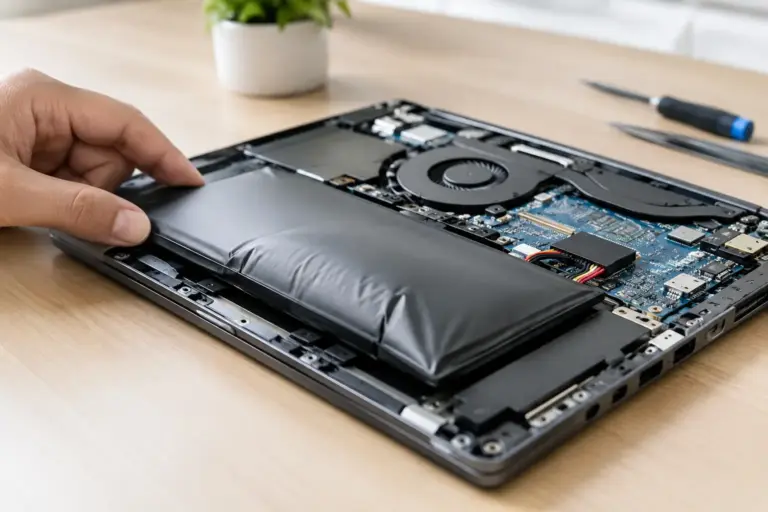
A laptop that suddenly rocks on a desk, has a separating case seam, or will not sit flat is not just inconvenient. It may have a swollen battery inside. Understanding what causes laptop battery swelling can help you act before a damaged battery harms the computer, creates a safety risk, or turns a straightforward repair into a larger data-recovery problem.
Lithium-ion batteries are found in nearly every modern laptop, from compact personal notebooks to business workstations. They are efficient and rechargeable, but they are also consumable components. As they age or operate under unfavorable conditions, chemical changes inside the battery can produce gas. Because the battery is sealed, that gas has nowhere to go. The battery expands and begins pressing against the laptop’s case, trackpad, keyboard, screen, or internal components.
What Causes Laptop Battery Swelling?
Battery swelling is usually the result of normal battery chemistry breaking down over time, accelerated by heat, charging habits, physical damage, or a defective cell. It is not always caused by one obvious mistake. A well-cared-for laptop can eventually develop a swollen battery simply because rechargeable batteries do not last forever.
Inside a lithium-ion battery, chemical reactions move energy between electrodes as the battery charges and discharges. With every cycle, small amounts of the battery’s internal materials degrade. Over years of use, this can create gases that collect within the sealed battery pouch or cell. Once the pressure builds, the battery expands.
The most common contributing factors are age, repeated full charge cycles, sustained high temperatures, poor charging conditions, and manufacturing defects. The reason matters less than the response: a visibly swollen battery should be treated as a repair issue, not something to monitor for another few weeks.
Age and normal chemical wear
Most laptop batteries gradually lose capacity after a few hundred charge cycles. A charge cycle is not necessarily one plug-in session. It is the equivalent of using 100% of the battery’s capacity over time, whether that happens in one day or several.
As the battery ages, it may hold less power, run down faster, or report inaccurate percentages. Swelling can occur later in that aging process. A five- or six-year-old laptop battery is more likely to show these issues than a newer one, although age alone does not guarantee swelling.
Laptops that spend much of their life connected to power can also age in a different way. Modern charging systems are designed to prevent obvious overcharging, but holding a battery at a very high state of charge for long periods can still add stress, especially in warm environments.
Heat is a major accelerator
Arizona heat is hard on electronics. A laptop left in a vehicle, used outdoors in direct sun, or operated on a blanket that blocks its vents can become much hotter than it should. Heat speeds up the chemical reactions that age a lithium-ion battery and can increase the likelihood of gas formation.
The laptop does not need to feel dangerously hot for heat to have a long-term effect. Repeated exposure to elevated temperatures can shorten battery life over months or years. Gaming, video rendering, large spreadsheets, and other demanding workloads also raise internal temperatures, particularly when dust buildup or failing fans restrict cooling.
A charging laptop that is also working hard has two heat sources at once: the system itself and the battery. This does not mean you should never use a laptop while charging. It means the device needs good airflow, a stable surface, and attention when it begins running unusually hot.
Charging problems and incompatible power adapters
Using the correct manufacturer-approved charger or a quality replacement designed for the laptop matters. Low-quality adapters, damaged charging cables, unstable power, and chargers with the wrong specifications can create charging problems. In some cases, the laptop’s internal charging circuitry protects the battery. In others, inconsistent power may contribute to battery stress or reveal an existing battery fault.
A swollen battery is not proof that a charger caused the issue. Many failures are simply age-related. Still, a technician should inspect the charger, charging port, and power-management system during battery replacement so the new battery is not put into the same unfavorable conditions.
Physical damage and defective cells
A drop, crushed corner, liquid exposure, or previous improper repair can damage a battery internally even when the laptop continues working. The problem may not appear immediately. A damaged cell can degrade over time, heat up more than expected, or begin swelling later.
Manufacturing defects are less common, but they do happen. One defective cell in a multi-cell battery pack can affect the entire pack. If a relatively new laptop has swelling, rapid battery decline, overheating, or unexplained shutdowns, the battery and charging system should be inspected rather than assuming the device is simply old.
Signs of a Swollen Laptop Battery
Laptop battery swelling is sometimes easy to see, but it can also begin quietly. You may notice a trackpad that is hard to click, a keyboard that seems raised in the center, a gap where the bottom case no longer closes, or a screen that does not shut evenly. On some models, the laptop may wobble because the bottom panel has bowed outward.
Battery life changes can be a clue, but they are not a reliable diagnosis by themselves. Batteries lose capacity naturally. Physical distortion is the more urgent warning sign.
Watch for these four symptoms in particular:
- The bottom cover bulges, separates, or will not sit flush.
- The trackpad, palm rest, or keyboard is lifted or difficult to use.
- The laptop becomes unusually hot while charging or during light use.
- The battery drains very quickly, charges inconsistently, or the computer shuts down unexpectedly.
Do not press a bulge back into place. Do not try to flatten the battery, pierce it, or force the laptop case closed. A compromised lithium-ion battery can leak, overheat, or catch fire if punctured or severely damaged.
What to Do If Your Laptop Battery Is Swollen
If you suspect swelling, stop using the laptop and unplug its charger. Place it on a nonflammable, stable surface away from paper, fabric, direct sun, and anything that could block airflow. Avoid charging it again just to retrieve files or see whether the problem improves.
If the laptop is still operating normally and the case has not significantly separated, power it down through the operating system when possible. If it is already hot, smoking, hissing, leaking, or giving off a sharp chemical odor, move away from it and contact local emergency services if there is an immediate fire concern. Do not handle a hot or actively damaged battery more than necessary.
Do not put a swollen battery in household trash or a standard recycling bin. Lithium-ion batteries require proper handling and disposal. A professional repair provider can remove the battery safely and direct it to an appropriate recycling channel.
For laptops with removable batteries, replacement may be relatively straightforward. Many newer models have internal batteries secured under the bottom cover, often near delicate cables, speakers, and the trackpad. Opening a swollen laptop can place pressure on the battery, which is why this is usually not a good first-time DIY repair.
Can a Swollen Battery Damage the Laptop?
Yes. The battery can push upward into the trackpad and keyboard or outward into the bottom cover. In severe cases, it can damage the chassis, break clips, bend internal brackets, crack the screen assembly, or interfere with the motherboard and cabling.
The good news is that a prompt battery replacement often prevents most of that damage. If the laptop is caught early, the repair may only require a new battery and a quick inspection of the case and charging system. Waiting until the keyboard, trackpad, or screen is visibly distorted can make the repair more involved.
For business users, the bigger risk may be downtime. A swollen battery can take an employee’s primary workstation out of service with little warning. Keeping current backups and having an IT support plan helps ensure that a battery failure does not become a lost-work or lost-data event.
How to Reduce the Risk of Battery Swelling
No maintenance habit can make a lithium-ion battery last indefinitely, but sensible care can reduce unnecessary stress. Keep the laptop on a hard surface with clear vents, clean dust from cooling areas as needed, and avoid leaving it in a hot car. Use a compatible charger in good condition, and replace frayed cables or loose adapters.
If your laptop manufacturer provides battery-health settings, consider using a charge limit for a machine that stays plugged in at a desk most of the time. A limit around 80% can be useful for some long-term plugged-in systems, though the trade-off is less runtime when you need to work away from power. For frequent travelers, full charging may still make more sense.
Pay attention to physical changes, not just battery percentage. A laptop that no longer closes correctly or develops a raised trackpad deserves attention even if it still turns on and seems to hold a charge.
A swollen battery is one problem worth addressing early and carefully. Freelance Computers can inspect the device, replace the battery when appropriate, and help protect the data and hardware you rely on. Fast action gives your laptop the best chance of returning to safe, reliable use without unnecessary damage.
